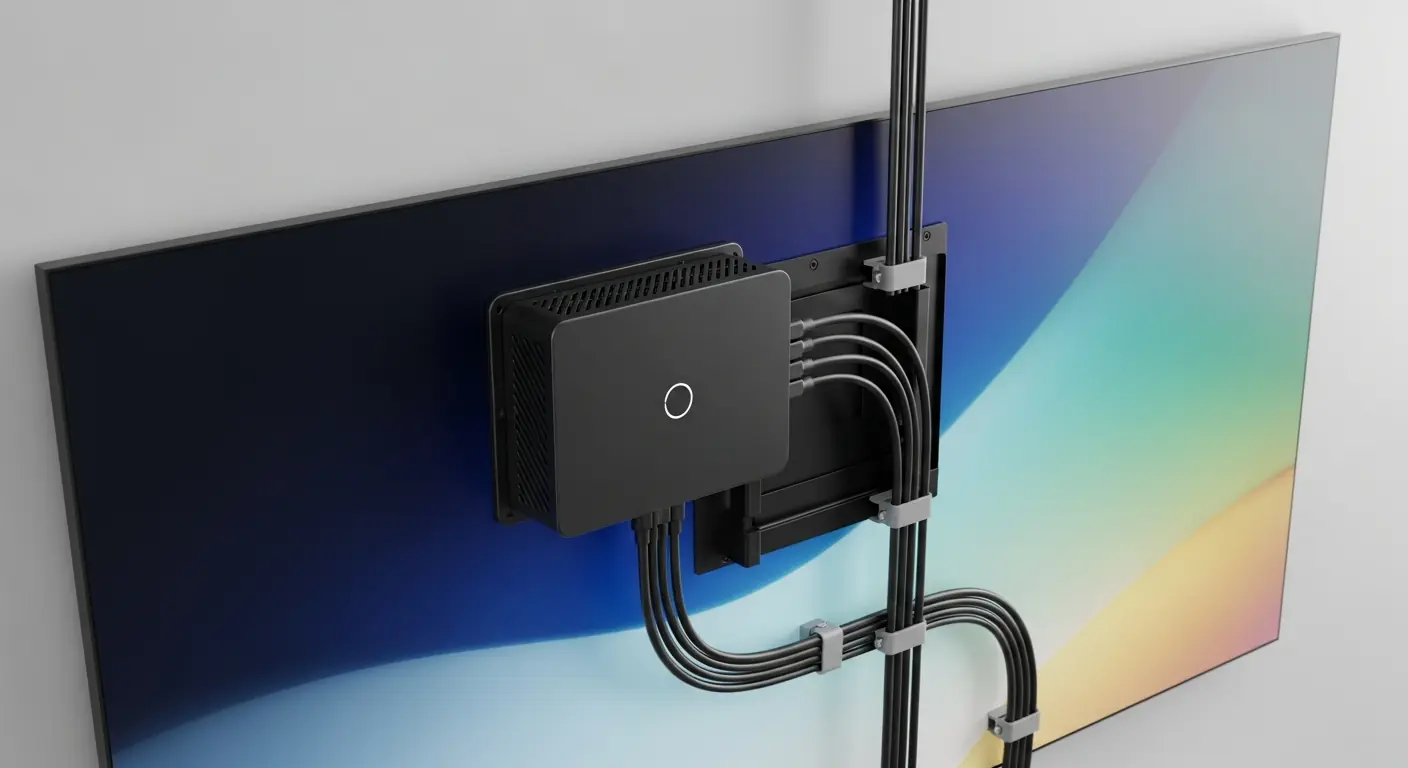
Why the Player Decision Matters More Than the Screen
When operators plan a new digital signage installation, most of the budget conversation centres on displays — size, brightness, bezel width. The media player is an afterthought, or worse, the cheapest box the installer had in the van. That is a mistake that costs money twice: first when the underpowered hardware struggles with the content, and again when it needs replacing long before the screens do.
The player is the engine of your signage network. It determines what your content can do, how reliably it does it, and how much ongoing effort your team spends keeping it running. This guide cuts through the spec-sheet noise and gives venue managers, retail operations leads and hospitality teams a practical framework for making the right call.
Step 1 — Define Your Content Complexity First
Before you look at a single datasheet, write down what you actually need to play. Player requirements are almost entirely driven by content complexity, and operators consistently underestimate where they sit on that scale.
- Basic (static images, simple full-screen video loops): A low-cost ARM-based player is usually sufficient. Think lobby welcome screens, back-of-house notices, or a single promotional loop in a retail window.
- Intermediate (multi-zone layouts, live data feeds, HTML5 widgets, 1080p video): You need a player with a capable GPU, 4 GB RAM minimum, and a CMS that supports zone-based templates. Most retail and quick-service restaurant deployments land here.
- Advanced (4K video, real-time data integrations, multi-screen video walls, interactive touch): Commercial-grade players running on Intel Core or equivalent, 8 GB+ RAM, and solid-state storage are the baseline. Budget and experiential retail, large hospitality venues and transport hubs typically require this tier.
If you are unsure, assume the next tier up. Content ambitions always grow; player budgets rarely do after purchase.
Step 2 — Consumer vs. Commercial Hardware
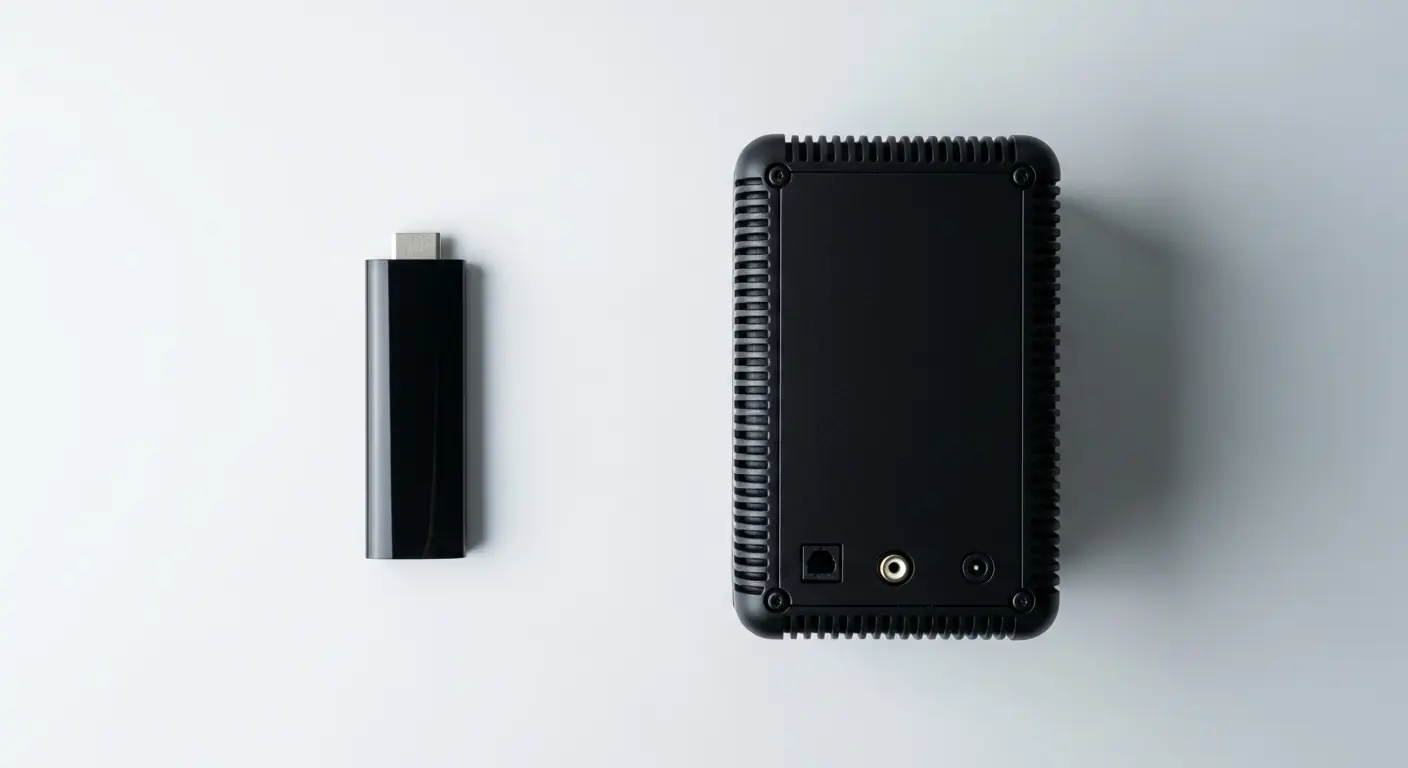
A consumer Amazon Fire Stick or a spare office PC might run your signage software. For a pilot, fine. For a permanent deployment, both carry hidden costs that erode the initial saving.
- Duty cycle: Consumer devices are rated for 4–6 hours of daily use. Commercial signage players are rated for 16–24 hours continuous operation. Running consumer hardware around the clock degrades it within 12–18 months.
- Thermal management: Commercial players are passively or actively cooled for sustained loads. Consumer devices throttle under prolonged stress, causing dropped frames, audio glitches and reboots at the worst possible moment.
- Remote management: Commercial players support out-of-band management, watchdog timers and remote reboot — meaning your team can fix a frozen screen from a browser rather than dispatching a technician.
- Warranty and replacement: Commercial hardware typically carries 3–5 year warranties with advance replacement. Consumer hardware does not.
The total cost of ownership calculation almost always favours commercial hardware for any deployment expected to last more than two years.
Step 3 — Connectivity and Network Requirements
Players need a reliable path to your CMS for content updates and monitoring. Get this wrong and the most powerful player in the world becomes an expensive screensaver.
- Wired vs. wireless: Where a cable run is feasible, always choose wired Ethernet. Wi-Fi introduces latency, interference and drop-out risk — particularly in retail and hospitality environments dense with competing wireless devices. If Wi-Fi is unavoidable, confirm the player supports Wi-Fi 5 (802.11ac) or Wi-Fi 6 (802.11ax).
- Bandwidth per player: As a rule of thumb, budget 5–10 Mbps of available bandwidth per player for routine content synchronisation. 4K players pushing large video files may need more during off-peak sync windows.
- Offline resilience: Confirm that your chosen player and CMS combination will continue playing cached content if the network drops. A connectivity blip should never produce a blank screen.
- VLAN and firewall considerations: IT teams will want signage players on a dedicated VLAN, isolated from point-of-sale and guest networks. Check which ports and domains your CMS requires; get this into your IT documentation before installation day.
Step 4 — Operating System: Android, Windows or Linux?
Each OS has genuine trade-offs. The right answer depends on your CMS, your IT team's skillset and your content requirements.
- Android (SoC or dongle-style): Low cost, low power, widely supported by cloud-based CMS platforms. Best for straightforward content and large-scale deployments where per-unit cost matters. Limitations emerge with complex HTML5, high-frame-rate video and enterprise IT policies that require domain-joined devices.
- Windows: Highest software compatibility, familiar for IT teams, supports virtually all CMS platforms and content types. Higher per-unit cost; requires ongoing OS patching; generally overkill for simple content but the right choice for interactive and data-heavy applications.
- Linux (purpose-built): Very stable, low overhead, excellent for set-and-forget deployments. Requires a CMS that explicitly supports it; less flexibility for ad-hoc content changes. Popular in transport and large-venue permanent installations.
Check your shortlisted CMS vendor's compatibility matrix before committing to an OS. Some platforms support all three; others have a strong preference that will shape your options.
Step 5 — Provisioning, Monitoring and Support at Scale
A single screen is easy to manage manually. Twenty screens across three sites is where unplanned provisioning and monitoring becomes a serious operational burden.
- Zero-touch provisioning: Look for players that support automated enrolment — the device registers itself with your CMS and receives its configuration on first boot, with no on-site IT involvement. This is non-negotiable for multi-site rollouts.
- Remote monitoring and alerting: Your CMS should surface player health — uptime, last-seen timestamp, storage usage, software version — in a single dashboard. Alerts for offline or degraded players mean you know before your customer does.
- Software update management: Confirm that player firmware and CMS app updates can be pushed remotely, scheduled for low-traffic windows, and rolled back if something breaks. Manual updates at scale are a maintenance debt you do not want.
- Spare-unit strategy: For business-critical screens (menu boards, wayfinding, event boards), hold at least one spare pre-configured player per site. A like-for-like swap is a 10-minute fix; waiting for a replacement to arrive and be configured is a two-day outage.
Step 6 — Questions to Ask Your Signage Vendor Before You Sign
Use these as a qualification checklist in any vendor conversation:
- What is the maximum simultaneous zone count and video resolution this player supports at stable frame rates?
- How are firmware and player-app updates delivered, and can they be scheduled and rolled back?
- What happens to displayed content if the player loses network connectivity?
- Is the player supported in your CMS's remote-monitoring dashboard, and what alerts are available?
- What is the MTBF (mean time between failures) rating, and what does the advance-replacement process look like?
- Can the player be enrolled and provisioned without a technician physically touching it after initial deployment?
A vendor who hesitates or hedges on any of these is telling you something important.
The Short Version — A Decision Checklist
- ✔ Map your content complexity tier before specifying hardware
- ✔ Choose commercial-grade hardware for any deployment running more than 8 hours a day
- ✔ Prefer wired Ethernet; treat Wi-Fi as a last resort, not a default
- ✔ Validate OS compatibility with your chosen CMS before purchase
- ✔ Confirm zero-touch provisioning and remote monitoring are supported
- ✔ Budget for spares and factor in total cost of ownership, not just unit price
Getting the player right is the unglamorous work that makes everything else — the creative content, the CMS strategy, the audience measurement — actually deliver. Spend the time here. It pays back every day the screens are running.
Ready to put this into practice? Hangar Media is digital-signage software built for venue, retail and hospitality operators — create screens, schedule content, and manage every display from one browser. One flat price: £5 per screen per month plus VAT, every feature included. Get started with Hangar Media →