Sales Pro-Eventdaten. Auf Ihren Bildschirmen.
Verbinden Sie Sales Pro Catering- und Eventmanagement-Software mit Ihrem Digital Signage-Netzwerk. Zeigen Sie Bankett-Eventaufträge, Raumkonfigurationen, Zeitpläne und Catering-Details in Ihrem gesamten Veranstaltungsort an.
Sales Pro Catering-Daten – überall sichtbar.
Die Hangar.Media Sales Pro-Integration ruft Bankett-Eventaufträge, Raumkonfigurationen, Catering-Zeitpläne und Eventdetails direkt aus Ihrem Sales Pro-System ab. Küchenteams sehen Mahlzeiten-Vorbereitungspläne, Aufbau-Teams sehen Raumkonfigurationen, und Gäste sehen ansprechende Eventverzeichnisse und Willkommens-Bildschirme. Alle Daten werden automatisch synchronisiert, während Ihr Catering-Team in Sales Pro arbeitet.
Was Sie mit Auf Ihren Bildschirmen. tun können
Drei Funktionen, die diese Integration für Ihr Digital Signage-Netzwerk unverzichtbar machen.
Küchen- und Catering-Vorbereitungsbildschirme
Zeigen Sie Mahlzeitenzubereitungspläne, Gästezahlen, Diätanforderungen und Anrichtezeiten auf Küchenbildschirmen an. Ihr Küchenteam sieht genau, was vorbereitet werden muss, für wie viele Gäste und bis wann – alles direkt aus Sales Pro-BEOs bezogen.
Ihr Küchenchef sieht die aktualisierte Gästezahl, bevor der Catering-Manager zum Telefon greift.
Mahlzeitenzahlen und Diätanforderungen pro Event
Zeitlich gestaffelte Vorbereitungs- und Anrichtepläne
Allergen- und Sonderwunsch-Hervorhebungen
Raumaufbau- und Konfigurationsanzeigen
Zeigen Sie Raumaufstellungsstile, Tischkonfigurationen, AV-Anforderungen und Dekorhinweise auf Bildschirmen in Aufbaubereichen und vor Eventräumen an. Aufbauteams nutzen diese Bildschirme anstelle gedruckter BEOs, die verloren gehen oder veralten.
Aufbauteams sehen die aktuelle Raumkonfiguration – nicht die gestrige Druckversion.
Raumaufstellungsstil mit Tisch- und Stuhlanzahl
AV-Ausstattung und Bühnenanforderungen
Dekor- und Sonderaufbauanweisungen
Visuelle Event-Zeitpläne zur Koordination
Zeigen Sie Event-Zeitpläne mit Aufbaubeginn, Türöffnung, Mahlzeitenservice, Reden und Abbau auf einem visuellen Zeitstrahl an. Betriebsleiter und Abteilungsleiter sehen den gesamten Tag auf einen Blick auf Back-of-House-Bildschirmen.
Der gesamte Eventtag, Minute für Minute, auf einem Bildschirm.
Visueller Zeitplan mit farbcodierten Eventphasen
Echtzeit-Indikator, der anzeigt, was gerade stattfinden sollte
Abteilungsspezifische Zeitplanansichten für fokussierte Teams
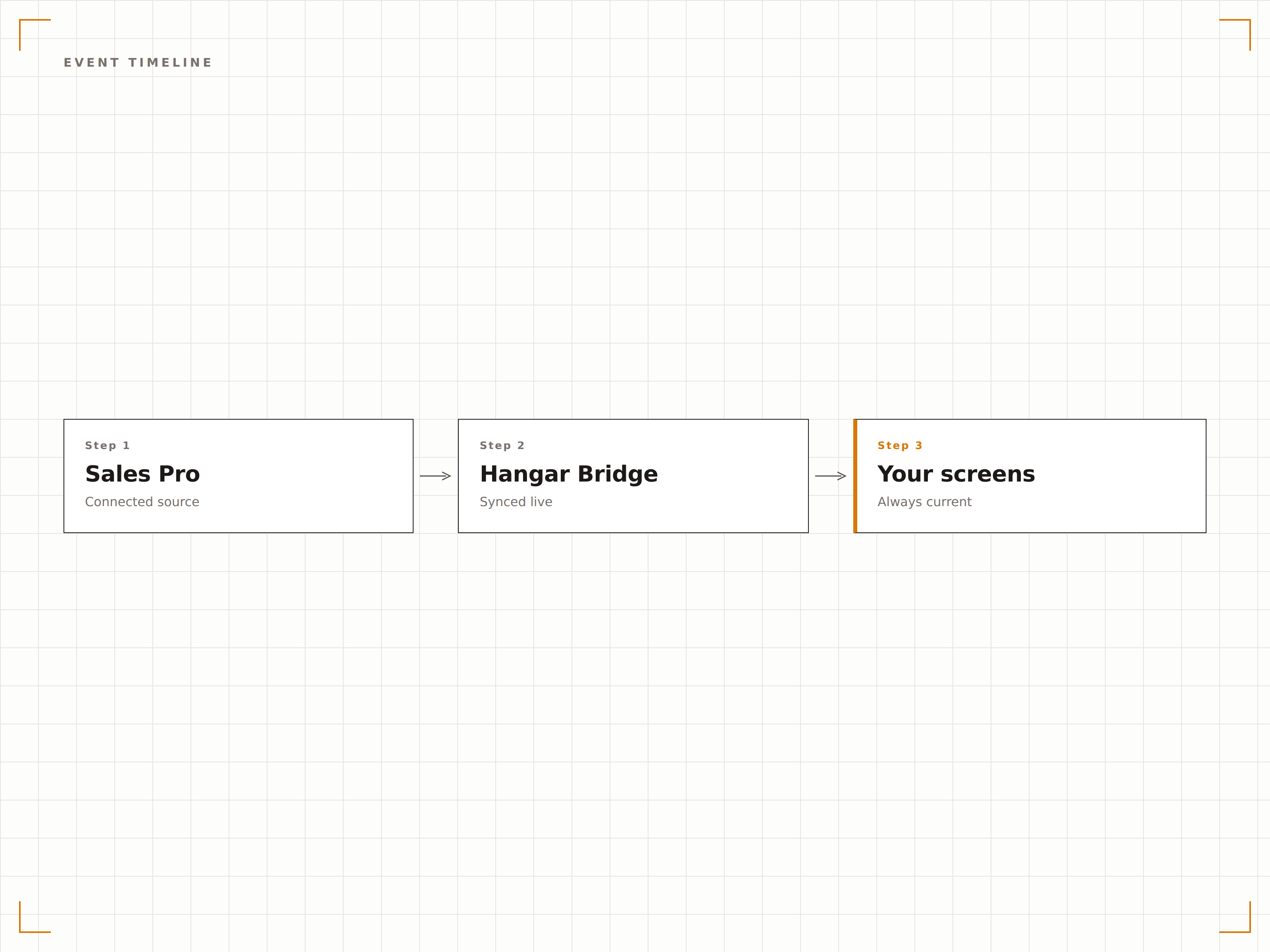
Vier Schritte zu verbundene Bildschirme.
Von der Einrichtung bis zu Live-Inhalten in Minuten, nicht Tagen.
Sales Pro verbinden
Verknüpfen Sie Ihr Sales Pro-System über die API-Integration mit Hangar.Media – mit Ihren Sales Pro-Administratordaten.
Bildschirmrollen zuweisen
Legen Sie fest, welche Bildschirme als Gäste-Verzeichnisse, Küchenanzeigen, Aufbauboards oder Betriebsdashboards fungieren.
Datenansichten einrichten
Wählen Sie, welche BEO-Felder und Eventdetails auf den jeweiligen Bildschirmtypen erscheinen – abgestimmt auf Zielgruppe und Abteilung.
Bildschirme aktivieren
Veröffentlichen Sie die Konfiguration – Sales Pro-Daten fliessen automatisch und rollenbasiert auf jeden Bildschirm.
Entwickelt für jeden Branche.
Erfahren Sie, wie verschiedene Branchen diese Integration nutzen, um Ergebnisse zu erzielen.
Hotelbankettbetrieb
Zeigen Sie BEO-Details auf Küchen-, Aufbau- und Servicebildschirmen in Hotelbankettabteilungen an, um grosse Catering-Events zu koordinieren.
EntertainmentVenue-Eventkoordination
Zeigen Sie Event-Zeitpläne, Raumaufstellungen und Catering-Pläne auf Personalbildschirmen in Event-Venues und Bankettsälen an.
CorporateBetriebsverpflegung und Events
Zeigen Sie Unternehmens-Catering-Bestellungen, Besprechungsmahlzeitenpläne und Executive-Dining-Details auf Bildschirmen in betrieblichen Kücheneinrichtungen an.
EducationUniversitäts-Dining-Events
Zeigen Sie Catering-Pläne für Sonderveranstaltungen, Bankettdetails und Dining-Hall-Eventaufstellungen auf Bildschirmen in universitären Verpflegungseinrichtungen an.
Häufige Fragen. Direkte Antworten.
Welche Version von Sales Pro ist kompatibel?
Hangar.Media unterstützt Sales Pro-Versionen mit aktiviertem API-Zugang. Wenden Sie sich an Ihren Sales Pro-Kundenbetreuer, um die API-Verfügbarkeit für Ihre Version zu bestätigen und die erforderlichen Integrationsdaten zu erhalten.
Kann das Küchenpersonal mit dem Bildschirm interagieren?
Die aktuelle Integration ist ausschliesslich zur Anzeige konzipiert – für maximale Zuverlässigkeit in Küchenumgebungen. Die Daten fliessen in eine Richtung: von Sales Pro zum Bildschirm. Küchenpersonal bestätigt Aufgaben und aktualisiert den Status direkt in der Sales Pro-Anwendung.
Wie werden Diätanforderungen hervorgehoben?
Diätanforderungen und Allergen-Kennzeichnungen aus Sales Pro-BEOs werden mit farbcodierten Labels auf den Küchenbildschirmen angezeigt. Häufige Allergene wie Nüsse, Gluten und Milchprodukte sind prominent hervorgehoben, damit das Zubereitungsteam Spezialspeisen auf einen Blick erkennt.
Kann ich verschiedene BEO-Abschnitte auf verschiedenen Bildschirmen anzeigen?
Ja. Sie können jeden Bildschirm so konfigurieren, dass er bestimmte BEO-Abschnitte anzeigt. Küchenbildschirme zeigen Speisen- und Getränkedetails, Aufbaubildschirme die Raumkonfiguration und Servicebildschirme Zeitpläne sowie Gästezahlen. Jeder Bildschirmtyp filtert die Daten entsprechend.
Ein Preis. Die gesamte Plattform.
So stellen wir uns Digital Signage vor. Inhaltseditor, Bildschirmverwaltung und 200+ App-Integrationen – alles von Anfang an inklusive.
14 Tage kostenlos, bis zu 3 Bildschirme – keine Kreditkarte erforderlich.