Datos de eventos de Sales Pro. En tus pantallas.
Conecta el software de gestión de catering y eventos Sales Pro a tu red de señalización digital. Muestra órdenes de eventos de banquete, configuraciones de sala, cronogramas y detalles de catering en todo tu recinto.
Datos de Sales Pro para catering, en pantalla en todas partes.
La integración de Hangar.Media con Sales Pro extrae órdenes de eventos de banquete, configuraciones de sala, cronogramas de catering y detalles de eventos directamente desde tu sistema Sales Pro. Los equipos de cocina ven los cronogramas de preparación de comidas, los equipos de montaje ven las configuraciones de sala, y los huéspedes ven directorios de eventos y pantallas de bienvenida impecables. Todos los datos se sincronizan automáticamente mientras tu equipo de catering trabaja en Sales Pro.
Lo que puedes hacer con En tus pantallas.
Tres capacidades que hacen esencial esta integración para tu red de señalización digital.
Pantallas de preparación para cocina y catering
Muestra cronogramas de preparación de comidas, número de comensales, requisitos dietéticos y tiempos de emplatado en las pantallas de cocina. Tu equipo culinario ve exactamente qué debe preparar, para cuántos comensales y en qué momento, todo extraído directamente de los BEOs de Sales Pro.
Tu chef ve el número actualizado de comensales antes de que el responsable de catering descuelgue el teléfono.
Conteo de comidas y requisitos dietéticos por evento
Cronogramas de preparación y emplatado secuenciados por tiempo
Destacados de alérgenos y solicitudes especiales
Pantallas de configuración y montaje de sala
Muestra estilos de montaje de sala, configuraciones de mesas, requerimientos audiovisuales y notas de decoración en pantallas ubicadas en las áreas de preparación y fuera de las salas de eventos. Los equipos de montaje consultan estas pantallas en lugar de los BEOs impresos que se pierden o quedan desactualizados.
Los equipos de montaje ven la configuración de sala más reciente, no la versión impresa del día anterior.
Estilo de distribución de sala con conteo de mesas y sillas
Requerimientos de equipos audiovisuales y escenografía
Instrucciones de decoración y montaje especial
Cronogramas visuales de eventos para coordinación
Muestra cronogramas de eventos con el inicio del montaje, apertura de puertas, servicio de comidas, discursos y desmontaje en una línea de tiempo visual. Los gerentes de operaciones y jefes de departamento ven el día completo de un vistazo en las pantallas de áreas internas.
Todo el día del evento, minuto a minuto, en una sola pantalla.
Línea de tiempo visual con fases del evento codificadas por color
Indicador de tiempo actual que muestra lo que debería estar ocurriendo en este momento
Vistas de cronograma por departamento para equipos enfocados
Cuatro pasos hacia pantallas conectadas.
Desde la configuración hasta contenido en vivo en minutos, no en días.
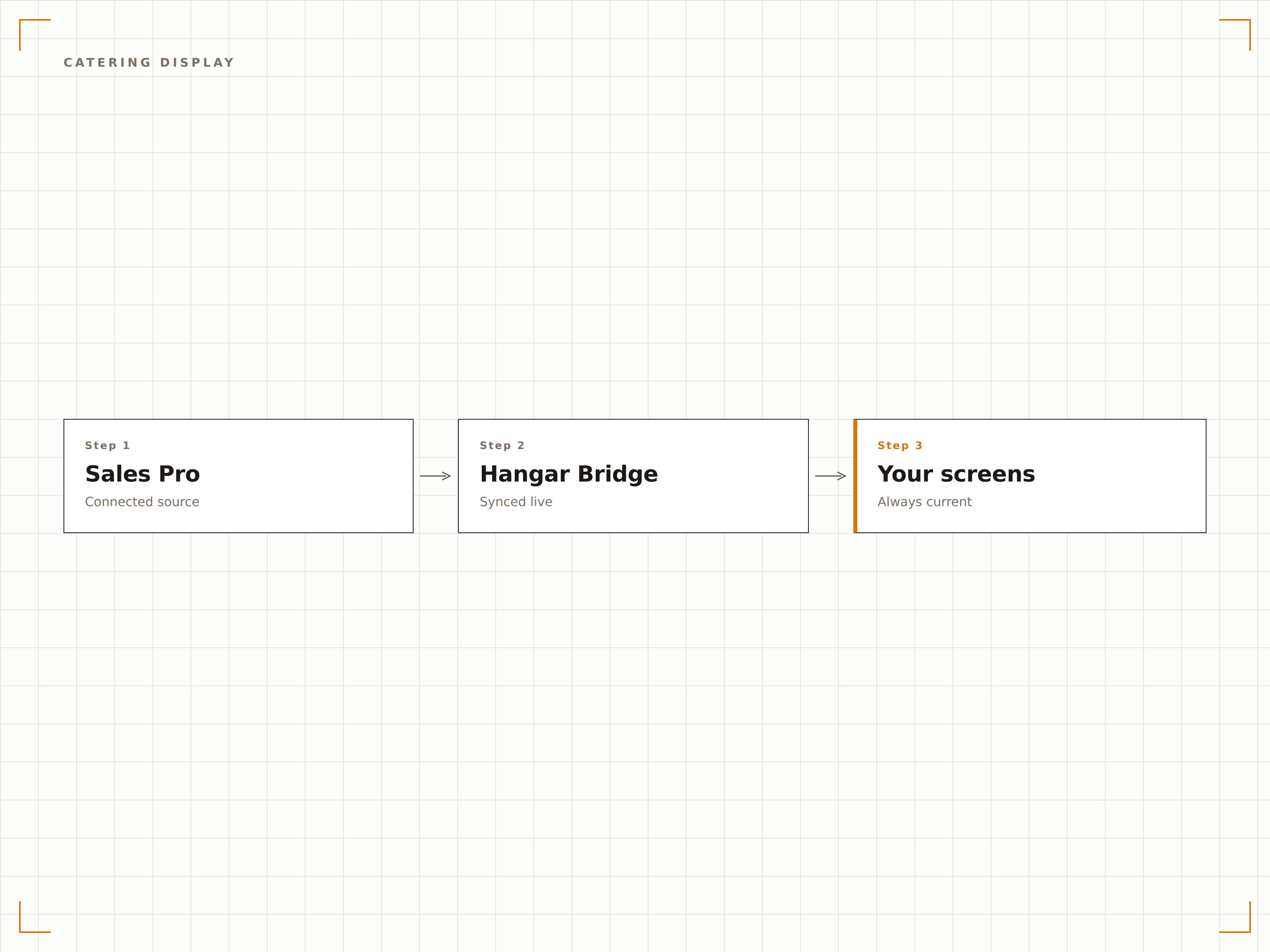
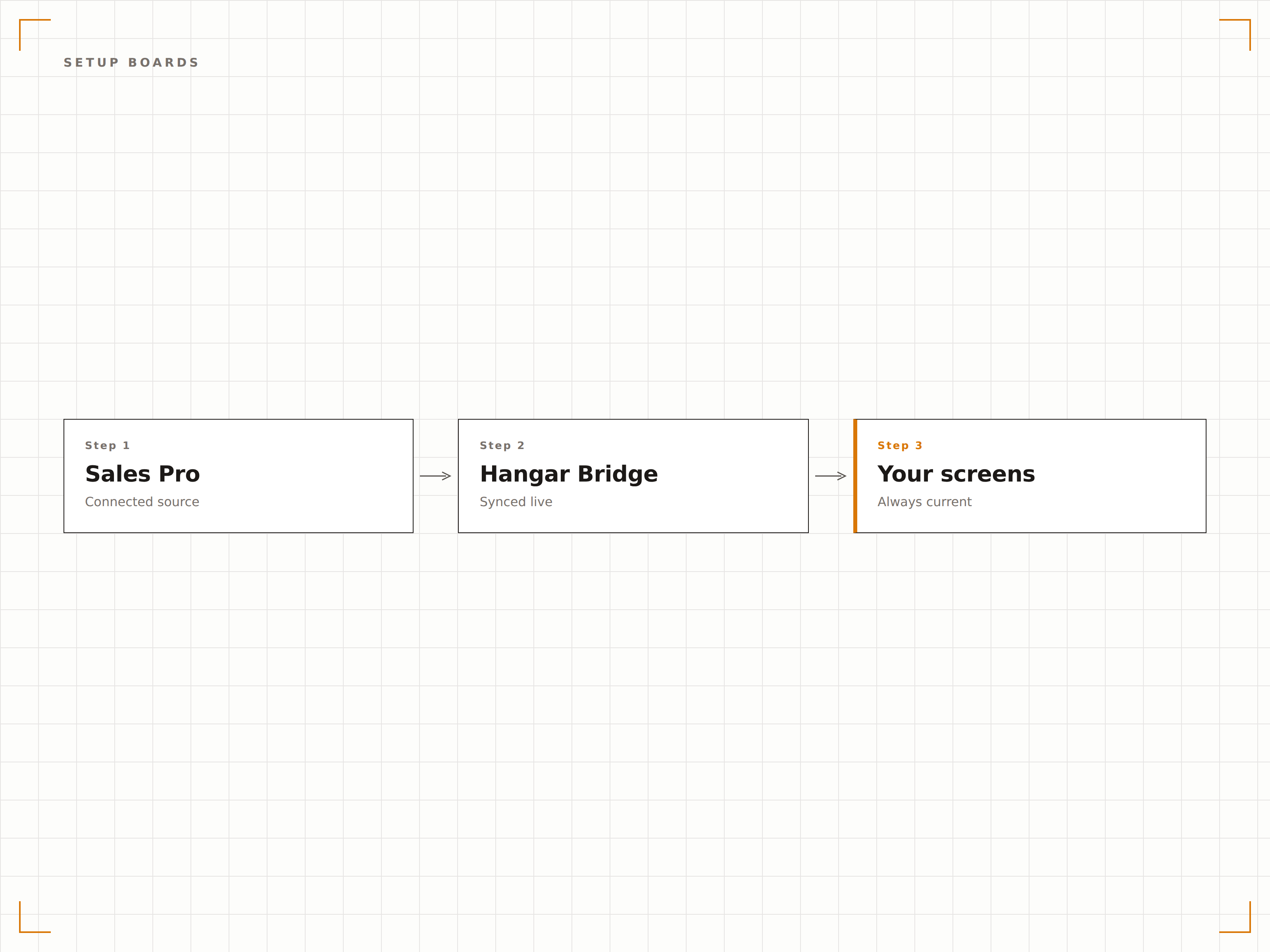
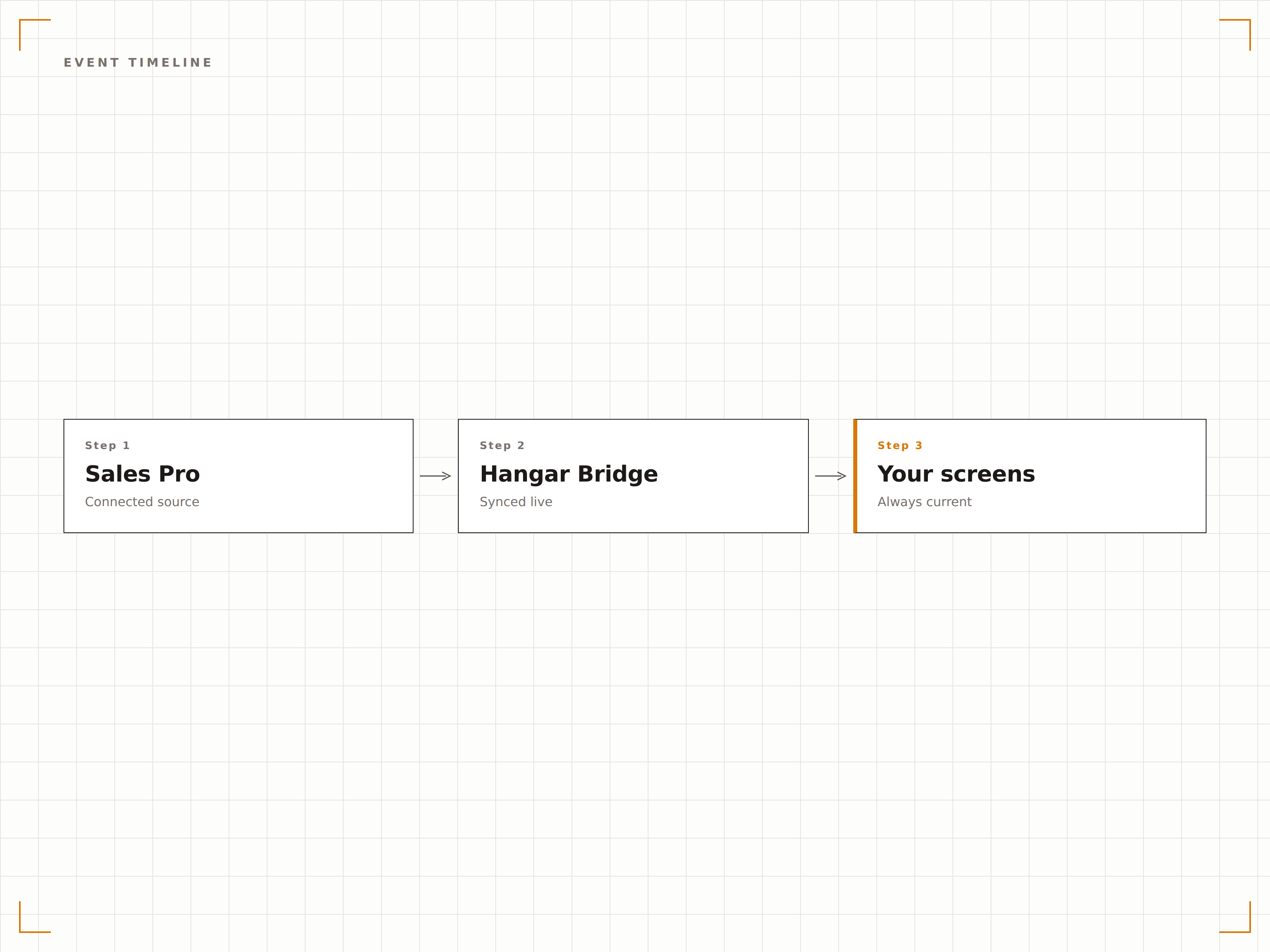
Conecta Sales Pro
Vincula tu sistema Sales Pro a Hangar.Media a través de la integración por API usando tus credenciales de administrador de Sales Pro.
Asigna roles a las pantallas
Designa las pantallas como directorios para huéspedes, pantallas de cocina, tableros de montaje o paneles de operaciones.
Configura las vistas de datos
Elige qué campos del BEO y detalles del evento aparecen en cada tipo de pantalla según el público y las necesidades del departamento.
Activa tus pantallas
Publica la configuración y los datos de Sales Pro fluyen automáticamente a cada pantalla según el rol asignado.
Diseñado para cada sector.
Descubre cómo distintas industrias utilizan esta integración para obtener resultados.
Operaciones de banquetes hoteleros
Muestra los detalles de los BEOs en pantallas de cocina, montaje y servicio en los departamentos de banquetes de hoteles para coordinar eventos de catering a gran escala.
EntretenimientoCoordinación de eventos en venues
Muestra cronogramas de eventos, configuraciones de sala y calendarios de catering en las pantallas del personal a lo largo de venues y salones de banquetes.
CorporativoCatering y eventos corporativos
Muestra pedidos de catering corporativo, cronogramas de comidas para reuniones y detalles de comedor ejecutivo en pantallas de instalaciones de cocina corporativa.
EducaciónEventos de comedor universitario
Muestra cronogramas de catering para eventos especiales, detalles de banquetes y configuraciones de eventos en comedores en pantallas de las instalaciones de servicio de alimentos universitarias.
Preguntas frecuentes. Respuestas directas: respuestas.
¿Qué versión de Sales Pro es compatible?
Hangar.Media es compatible con las versiones de Sales Pro que tienen acceso a API habilitado. Contacta a tu representante de cuenta de Sales Pro para confirmar la disponibilidad de la API en tu versión y obtener las credenciales de integración necesarias.
¿Puede el personal de cocina interactuar con la pantalla?
La integración actual es solo de visualización para garantizar la fiabilidad en entornos de cocina. Los datos fluyen en una sola dirección, de Sales Pro a la pantalla. El personal de cocina confirma tareas y actualiza el estado directamente en la aplicación de Sales Pro.
¿Cómo se destacan los requisitos dietéticos?
Los requisitos dietéticos y las alertas de alérgenos de los BEOs de Sales Pro se muestran con etiquetas codificadas por color en las pantallas de cocina. Los alérgenos más comunes, como frutos secos, gluten y lácteos, se destacan de forma prominente para que los equipos de preparación identifiquen los platos especiales de un vistazo.
¿Puedo mostrar diferentes secciones del BEO en distintas pantallas?
Sí. Puedes configurar cada pantalla para mostrar secciones específicas del BEO. Las pantallas de cocina muestran detalles de alimentos y bebidas, las pantallas de montaje muestran la configuración de la sala, y las pantallas de servicio muestran los tiempos y el número de comensales. Cada tipo de pantalla filtra los datos de forma adecuada.
Un precio. La plataforma completa.
Así es como creemos que debe funcionar la señalización digital. Editor de contenido, gestión de pantallas y más de 200 integraciones de aplicaciones — todo incluido desde el primer día.
14 días gratis, hasta 3 pantallas — sin tarjeta.