Microsoft identity, instant access. Azure AD integrated.
Connect Microsoft Azure Active Directory to Hangar.Media and let your team sign in with their Microsoft 365 credentials. Use conditional access policies, automated provisioning, and your existing Microsoft security investments.
Bring your Microsoft 365 identity to digital signage
Most enterprises already manage identity through Azure AD and Microsoft 365. The Hangar.Media Azure AD integration lets you extend that investment to your digital signage platform. Team members sign in with the same credentials they use for Outlook and Teams. IT admins manage access through the Azure portal they already know. Conditional access policies protect your signage platform just like every other enterprise application.
What you can do with Azure AD integrated.
Three capabilities that make this integration essential for your digital signage network.
Sign in with your Microsoft account
Team members click the Microsoft sign-in button on the Hangar.Media sign-in page and authenticate with their Microsoft 365 credentials. If they are already signed into Microsoft, they land in Hangar.Media without any additional prompt. True single sign-on for Microsoft workspaces.
Already signed into Microsoft? You are signed into Hangar.Media too.
One-click sign-in with Microsoft 365 credentials
Instant access if already authenticated to Microsoft
Support for both SAML 2.0 and OpenID Connect protocols
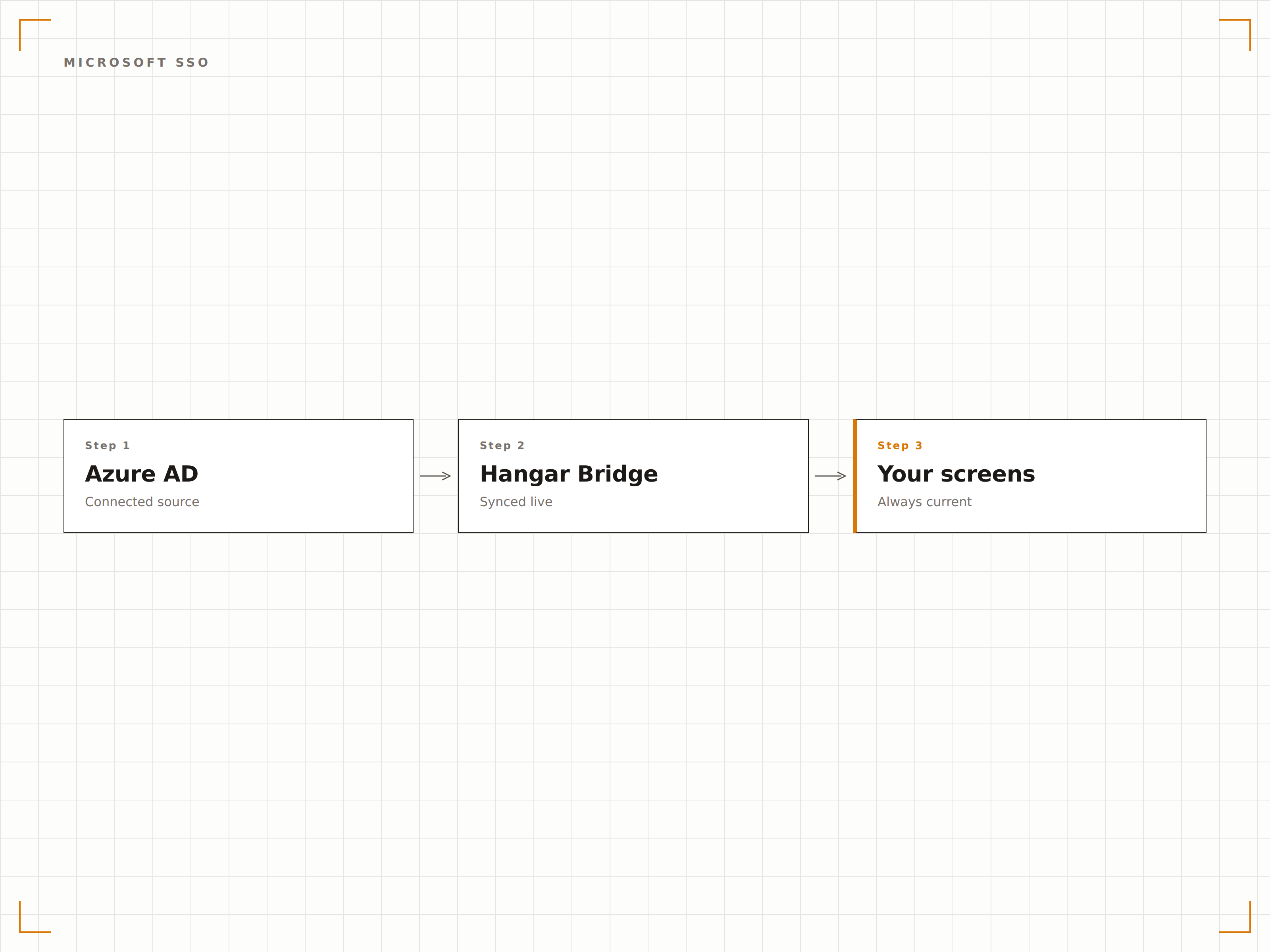
Azure security policies protect your screens
Azure AD conditional access policies are enforced when users access Hangar.Media. Require MFA from untrusted networks. Block access from non-compliant devices. Limit access to managed devices only. All enforced automatically through your existing Azure AD policies.
Your Azure security policies, automatically applied.
Network-based access restrictions
Device compliance requirements
MFA enforcement based on risk and location
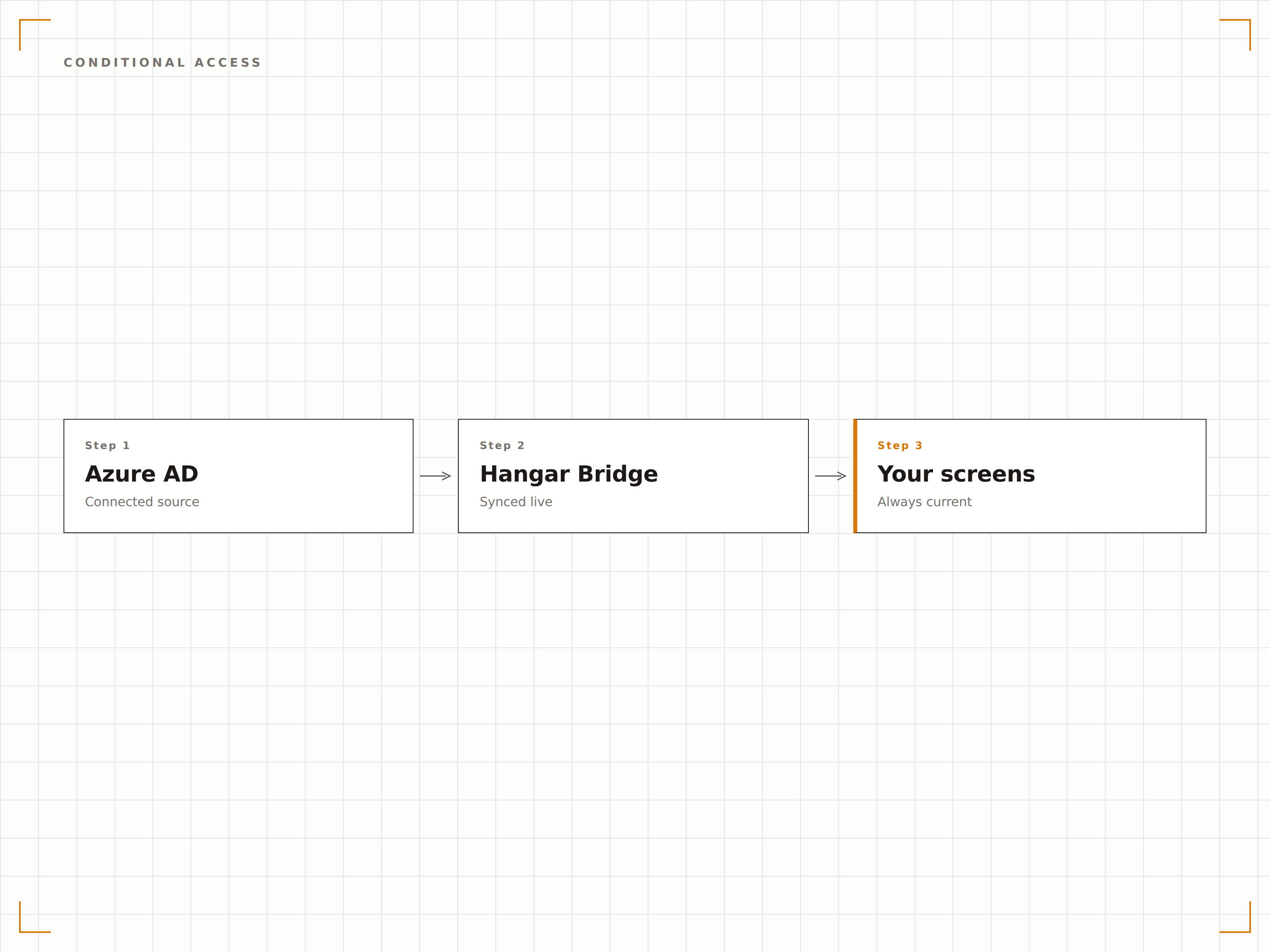
Azure AD groups drive Hangar.Media permissions
Map Azure AD security groups to Hangar.Media roles. When a user is added to a group in Azure AD, they automatically receive the corresponding permissions in Hangar.Media. Move them to a different group and their permissions change. Remove them entirely and their access is revoked.
Manage permissions in Azure AD. Hangar.Media stays in sync.
Security group to role mapping
Nested group support for complex organisational structures
Real-time sync via Microsoft Graph API webhooks
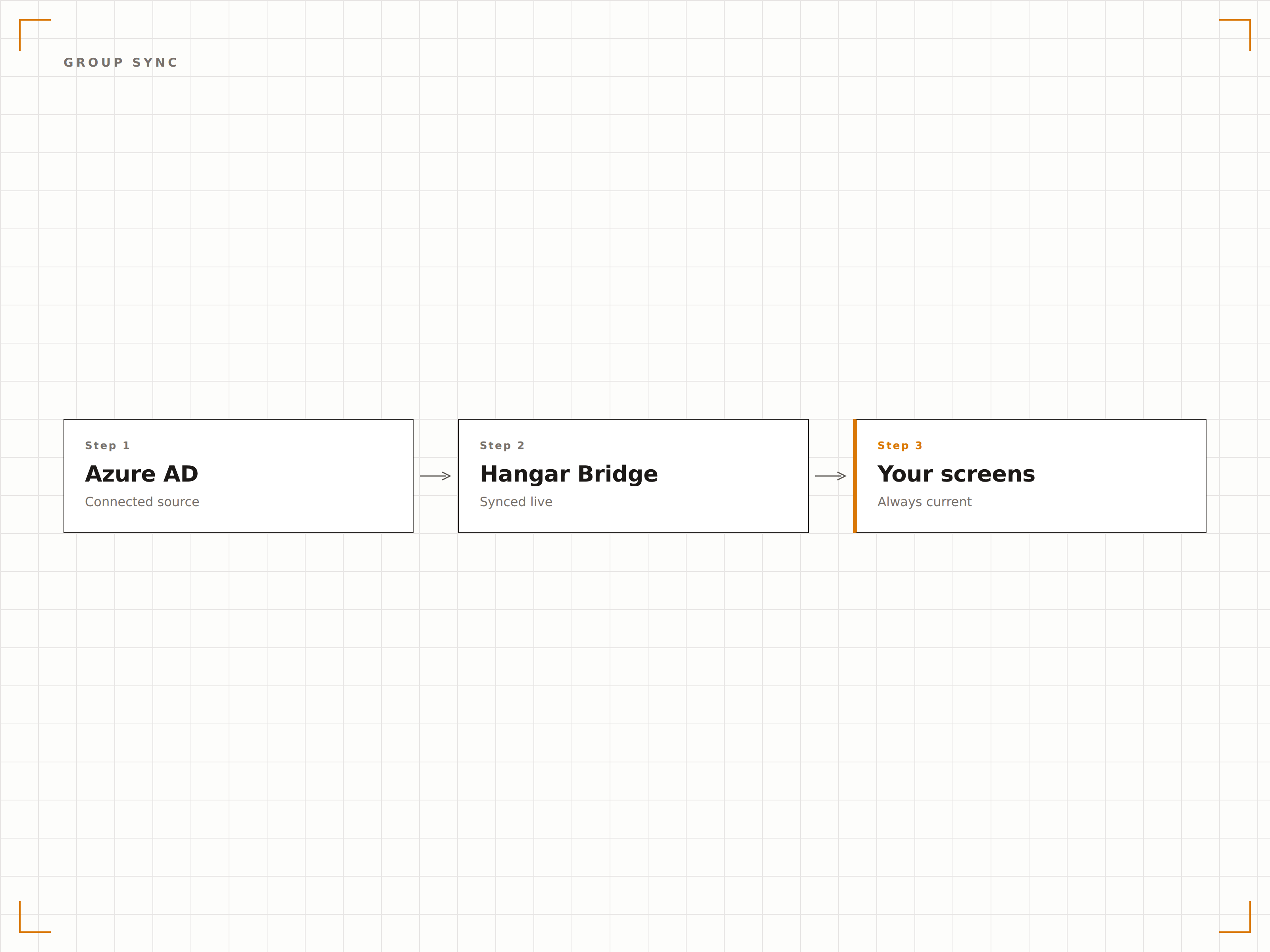
Four steps to connected screens.
From setup to live content in minutes, not days.
Register Hangar.Media in Azure AD
Add Hangar.Media as an enterprise application in your Azure AD tenant. Use the pre-built gallery app or set up manually with the provided SAML metadata.
Set up SSO protocol
Choose SAML 2.0 or OpenID Connect as your SSO protocol and exchange metadata between Azure AD and Hangar.Media. Test the SSO connection with a pilot user.
Set up user provisioning
Enable automated provisioning using Microsoft Graph API. Set up which Azure AD groups sync to Hangar.Media and map group membership to platform roles.
Apply conditional access policies
Add the Hangar.Media enterprise app to your Azure AD conditional access policies. Define MFA, device compliance, and location-based access rules.
Built for every sector.
See how different industries use this integration to drive results.
Microsoft-native enterprises
Extend your Microsoft 365 identity investment to digital signage management for organisations that standardise on Microsoft across all enterprise applications.
EducationSchool Microsoft 365 integration
Allow teachers and administrators to manage campus digital signage using their school Microsoft 365 accounts with role-based access.
HealthcareHospital network access control
Enforce conditional access policies for clinical staff accessing digital signage management from hospital networks and personal devices.
FinancialCompliant device access
Restrict digital signage management to Azure AD compliant devices only, ensuring branch staff can only manage screens from approved workstations.
Common questions. Straight answers.
Does the integration work with Azure AD B2C
The integration is designed for Azure AD (now Microsoft Entra ID) for workforce identities. Azure AD B2C for customer identities is not supported for SSO. If you need external user access, use Hangar.Media native user management or Azure AD B2B guest access.
Can I use both SAML and OpenID Connect
You choose one protocol per Azure AD tenant connection. Both SAML 2.0 and OpenID Connect are fully supported. OpenID Connect is recommended for new setups as it provides a simpler setup process and supports more modern authentication flows.
How quickly are Azure AD changes reflected in Hangar.Media
Group membership and user attribute changes sync via Microsoft Graph API. Standard sync cycles run every 40 minutes. For immediate updates, you can trigger a manual sync from the Hangar.Media dashboard. User deactivation in Azure AD revokes Hangar.Media access at the next sync.
Is Microsoft Entra ID supported
Yes. Microsoft Entra ID is the new name for Azure Active Directory. The Hangar.Media integration works with Microsoft Entra ID exactly as it does with Azure AD. No setup changes are needed if your tenant has been rebranded to the Entra ID naming.
One price. The whole platform.
That's how we think signage should work. Content editor, screen management, and 200+ app integrations — all included from day one.
14 days free, up to 3 screens — no card needed.