Mapwize Indoor-Karten. Auf Ihrem Signage.
Integrieren Sie Mapwize Indoor-Mapping und Wegführung, um interaktive Grundrisse, Verzeichnisse mit Points of Interest und schrittweise Indoor-Navigation auf Ihren Digital Signage Bildschirmen anzuzeigen.
Indoor-Navigation, powered by Mapwize.
Die Mapwize-Integration von Hangar.Media bringt professionelles Indoor-Mapping und Wegführung auf Ihre Digital Signage Bildschirme. Zeigen Sie interaktive Grundrisse mit durchsuchbaren Points of Interest, schrittweise Wegbeschreibungen und mehretagige Navigation an. Ihre Mapwize-Gebäudedaten werden automatisch synchronisiert, sodass Kartenänderungen, neue Räume und aktualisierte Routen ohne manuellen Eingriff auf den Bildschirmen erscheinen.
Was Sie mit Auf Ihrem Signage. tun können
Drei Funktionen, die diese Integration für Ihr Digital Signage-Netzwerk unverzichtbar machen.
Touchscreen-basierte Indoor-Kartenerkundung
Besucher interagieren mit farbigen Indoor-Karten auf Touchscreen-Bildschirmen. Sie können schwenken, zoomen, Etagen wechseln und auf Räume oder Points of Interest tippen, um Details anzuzeigen. Die Kartenoberfläche ist für Grossformat-Bildschirme optimiert, mit Touch-Zielen, die für die Bedienung im Stehen ausgelegt sind.
Zoomen, schwenken und tippen Sie sich durch das Gebäude.
Schwenken und Zoomen mit Multi-Touch-Gestenunterstützung
Etagenwechsel mit Gebäudequerschnittsansicht
Tippen zum Auswählen von Räumen mit Detail-Popups
Schritt-für-Schritt Indoor-Navigation
Besucher wählen ihr Ziel, und der Bildschirm zeigt eine hervorgehobene Laufroute vom Bildschirmstandort zum Zielraum an. Routen berücksichtigen Treppen, Aufzüge und Barrierefreiheitsanforderungen – mit textlichen Schritt-für-Schritt-Anweisungen neben dem visuellen Pfad.
Schritt-für-Schritt-Wegbeschreibungen von hier bis zu jedem Ziel im Gebäude.
Kürzeste-Weg-Berechnung zwischen beliebigen zwei Punkten
Barrierefreie Routenoptionen ohne Treppen
QR-Code zur Übertragung der Wegbeschreibung auf das Mobilgerät
Durchsuchbares Point-of-Interest-Verzeichnis
Durchsuchen Sie alle Points of Interest in Ihrer Mapwize-Venue direkt auf dem Signage-Bildschirm. Filtern Sie nach Kategorien wie Toiletten, Aufzüge, Besprechungsräume oder Abteilungen, und rufen Sie mit einem einzigen Tippen die Wegbeschreibung zu jedem POI ab.
Jeder Raum, jede Toilette und jede Ressource im Gebäude – mit einer einzigen Suche auffindbar.
Kategoriebasiertes POI-Browsing mit Icons
Stichwortsuche über alle POI-Namen und -Beschreibungen
Favoriten und häufig gesuchte POI-Schnellzugriffe
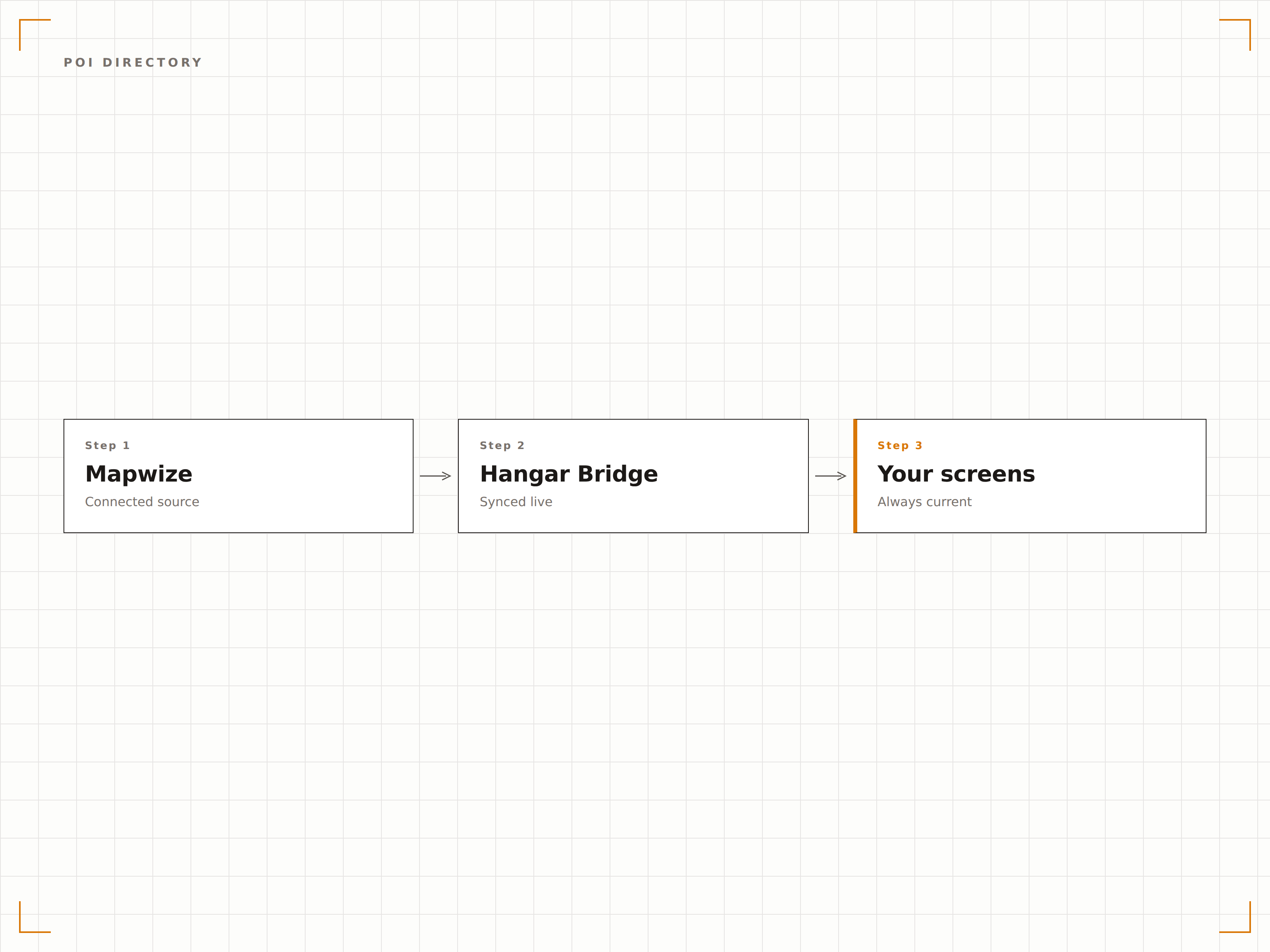
Vier Schritte zu verbundene Bildschirme.
Von der Einrichtung bis zu Live-Inhalten in Minuten, nicht Tagen.
Mapwize verbinden
Verknüpfen Sie Ihr Mapwize-Konto mit Hangar.Media mithilfe Ihres Mapwize-API-Schlüssels und Ihrer Venue-Kennung.
Bildschirmstandorte festlegen
Markieren Sie die physische Position jedes Signage-Bildschirms auf Ihrer Mapwize-Karte, damit Wegführungsrouten vom richtigen Ausgangspunkt starten.
Karteneinstellungen konfigurieren
Wählen Sie Standardetagenansichten, sichtbare POI-Kategorien und Wegführungsoptionen für jeden Bildschirm.
Auf Bildschirmen veröffentlichen
Veröffentlichen Sie die Mapwize-Karten auf Ihren Touchscreen- oder statischen Displays – und die Indoor-Navigation ist sofort aktiv.
Entwickelt für jeden Branche.
Erfahren Sie, wie verschiedene Branchen diese Integration nutzen, um Ergebnisse zu erzielen.
Wegführungskioske in Krankenhäusern
Helfen Sie Patienten und Besuchern, sich in komplexen Krankenhausgebäuden zurechtzufinden – mit interaktiven Indoor-Karten und Schritt-für-Schritt-Wegbeschreibungen zu Abteilungen und Kliniken.
UnternehmenNavigation auf Unternehmensgeländen
Zeigen Sie interaktive Geländekarten in den Lobbys von Bürogebäuden an, damit Mitarbeitende und Besucher Besprechungsräume und Abteilungen in mehreren Gebäuden finden können.
EinzelhandelEinkaufszentrums-Verzeichnisse
Zeigen Sie interaktive Einkaufszentrumskarten mit Geschäftsverzeichnissen, Toilettenstandorten und Laufwegbeschreibungen auf Touchscreen-Kiosken in Einkaufszentren an.
BildungWegführung auf Universitätsgeländen
Zeigen Sie Gebäudepläne mit Hörsaalstandorten, Büros der Lehrenden und Einrichtungshinweisen auf Bildschirmen an den Gebäudeeingängen von Universitäten an.
Häufige Fragen. Direkte Antworten.
Benötige ich ein bestehendes Mapwize-Konto?
Ja. Sie benötigen ein aktives Mapwize-Konto mit bereits konfigurierten Gebäudeplänen. Hangar.Media verbindet sich über die Mapwize-API mit Ihren Daten. Falls Sie noch kein Mapwize-Konto haben, wenden Sie sich an Hangar.Media für Unterstützung bei der Auswahl von Indoor-Mapping-Anbietern.
Funktioniert es auch auf Bildschirmen ohne Touchscreen?
Ja. Auf statischen, nicht berührungsempfindlichen Bildschirmen zeigt Hangar.Media eine rotierende Ansicht Ihres Gebäudeplans mit hervorgehobenen Schlüsselbereichen und Verzeichnissen. Interaktive Wegführungsfunktionen erfordern einen Touchscreen-Bildschirm.
Wie werden Kartenaktualisierungen verwaltet?
Wenn Sie Ihr Gebäude im Mapwize-Editor aktualisieren – etwa Räume hinzufügen, Namen ändern oder Routen anpassen – erkennt Hangar.Media die Änderungen und aktualisiert alle verbundenen Bildschirme automatisch innerhalb weniger Minuten.
Können Besucher Wegbeschreibungen auf ihr Smartphone senden?
Ja. Nachdem Besucher auf dem Signage-Touchscreen eine Route gefunden haben, können sie einen QR-Code scannen, um die Route auf ihr Mobilgerät zu übertragen. Sie erhalten einen Link zur Mapwize-Mobilerfahrung mit vorgeladener Route.
Ein Preis. Die gesamte Plattform.
So stellen wir uns Digital Signage vor. Inhaltseditor, Bildschirmverwaltung und 200+ App-Integrationen – alles von Anfang an inklusive.
14 Tage kostenlos, bis zu 3 Bildschirme – keine Kreditkarte erforderlich.