Teams Rooms rencontre l'affichage dynamique.
Connectez Microsoft Teams Rooms à votre réseau d'affichage dynamique pour des écrans de salle de réunion unifiés, des indicateurs de statut et un guidage intérieur.
Salles de réunion, unifiées
Microsoft Teams Rooms transforme les espaces de réunion en hubs de collaboration intelligents. Hangar.Media va plus loin en intégrant l'affichage dynamique à Teams Rooms pour une expérience de salle de réunion unifiée. Affichez le statut de la salle devant la porte, guidez les visiteurs vers les salles disponibles dans les couloirs, et diffusez du contenu d'affichage dynamique sur les écrans Teams Rooms lorsqu'aucune réunion n'est en cours. Un seul écran, deux usages.
Ce que vous pouvez faire avec l'affichage dynamique.
Trois fonctionnalités qui rendent cette intégration indispensable pour votre réseau d'affichage dynamique.
Panneaux de statut à l'extérieur des salles de réunion
Installez un écran d'affichage dynamique ou une tablette à l'extérieur de chaque Teams Room pour afficher le statut de disponibilité, les détails de la réunion en cours et les réservations à venir. Le panneau se synchronise avec le calendrier Teams Rooms pour une précision en temps réel.
Sachez si une salle est libre avant même de toucher la poignée.
Disponibilité en temps réel depuis le calendrier Teams Rooms
Indicateurs de statut avec code couleur
Détails de la réunion en cours et de la suivante
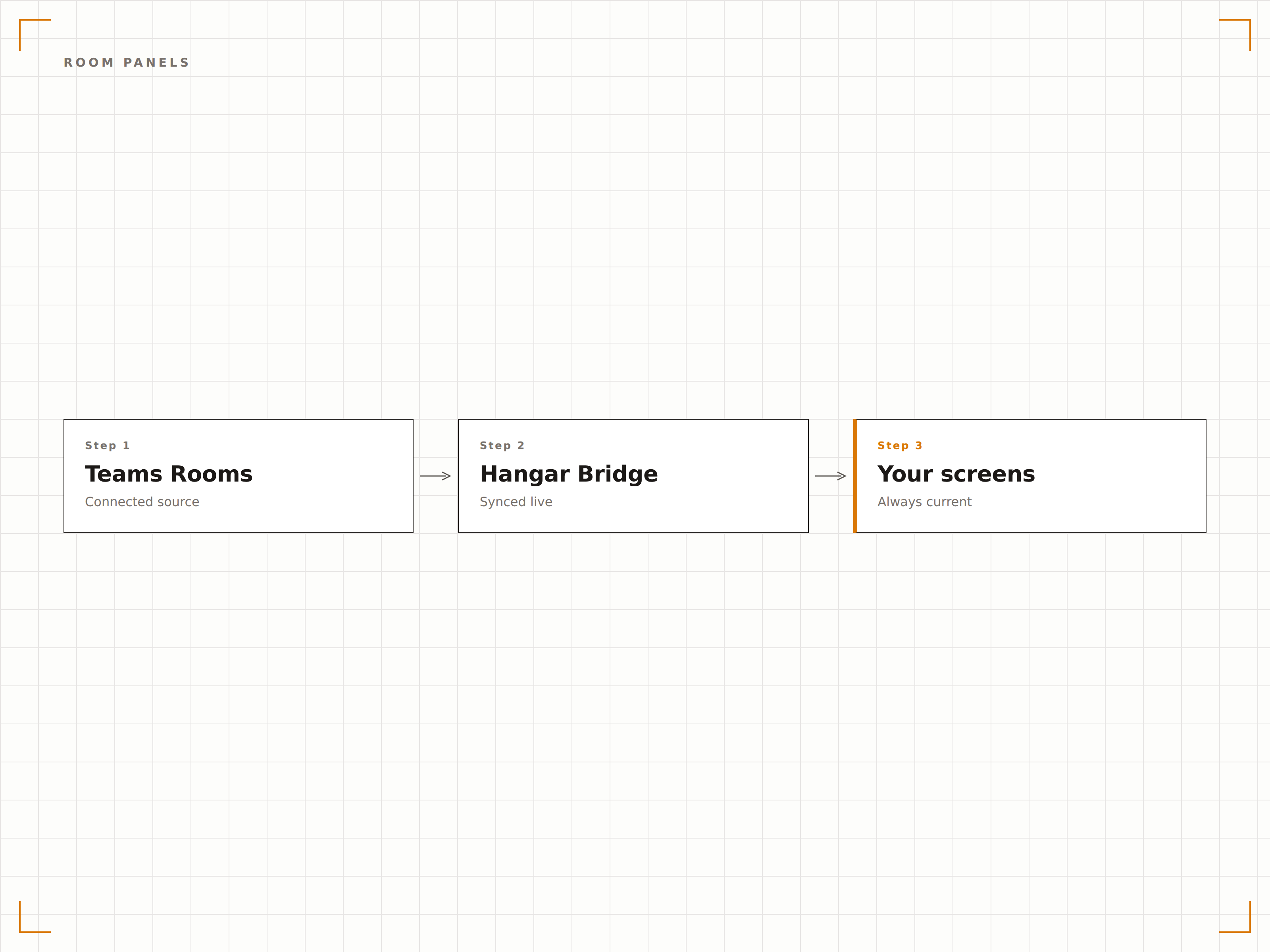
Contenu d'affichage dynamique en période d'inactivité
Lorsqu'une Teams Room n'est pas en réunion active, l'écran de la salle peut diffuser du contenu d'affichage dynamique — annonces d'entreprise, tableaux de bord ou contenu de marque. Dès qu'une réunion commence, l'écran repasse automatiquement en mode Teams Rooms.
Des écrans de réunion qui font aussi office d'écrans d'affichage dynamique.
Basculement automatique entre le mode affichage dynamique et le mode réunion
Playlist de contenu pendant les périodes d'inactivité
Transition fluide au démarrage des réunions
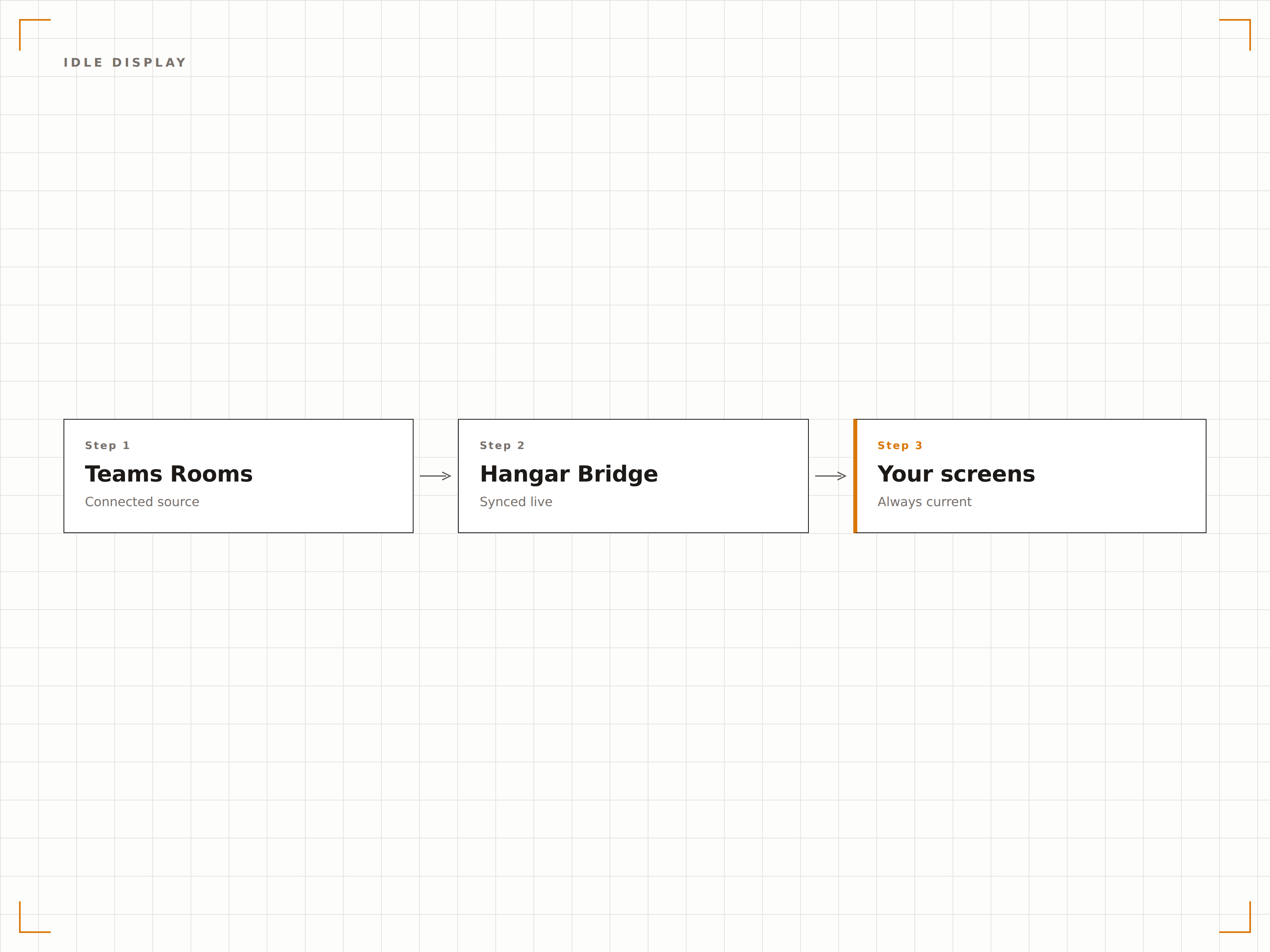
Guidez les visiteurs vers leur salle
Placez des écrans d'affichage dynamique dans les couloirs et les halls pour afficher une carte des salles de réunion disponibles avec leur statut en temps réel. Les visiteurs peuvent voir quelles salles sont occupées, lesquelles sont libres et où se trouve leur salle réservée.
Fini de chercher votre salle de réunion dans tout le bureau.
Plan d'étage avec superposition du statut des salles
Recherche de réservation pour les visiteurs
Signalétique directionnelle vers les salles réservées
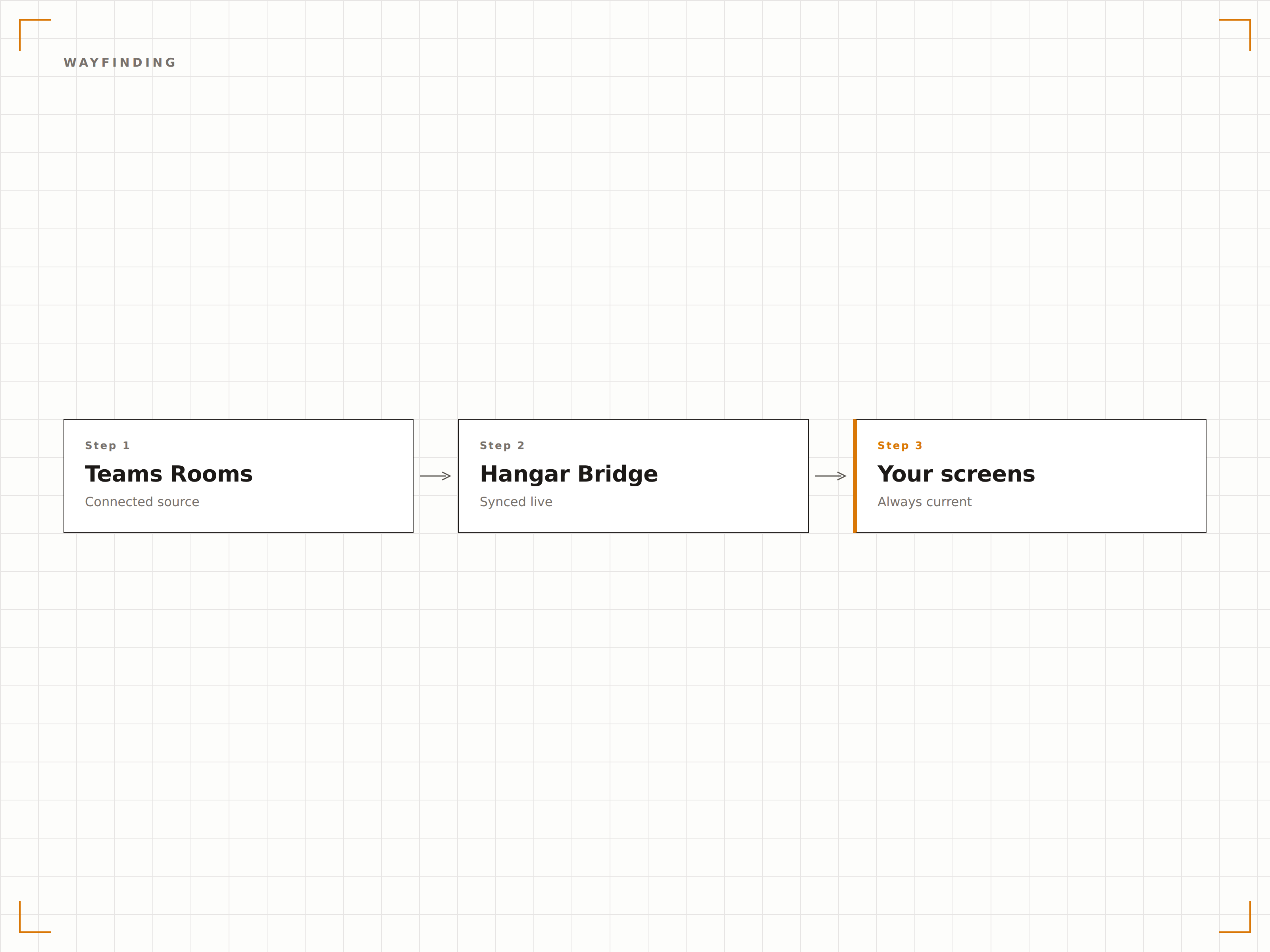
Quatre étapes vers écrans connectés.
De la configuration au contenu en direct en quelques minutes, pas en jours.
Connecter Teams Rooms
Associez vos comptes de ressources Microsoft Teams Rooms à Hangar.Media via l'authentification Azure AD.
Configurer les panneaux de salle
Configurez des écrans d'affichage dynamique à l'extérieur des salles de réunion comme panneaux de statut de salle avec les paramètres d'affichage.
Définir le contenu en veille
Choisissez le contenu d'affichage dynamique à diffuser sur les écrans Teams Rooms pendant les périodes d'inactivité entre les réunions.
Mise en ligne
Publiez les panneaux de salle, les écrans de signalétique directionnelle et le contenu en veille sur votre réseau d'affichage dynamique de salles de réunion.
Conçu pour chaque secteur.
Découvrez comment différents secteurs utilisent cette intégration pour obtenir des résultats.
Salles de réunion intelligentes
Installez des panneaux de statut à l'extérieur de chaque Teams Room et diffusez du contenu d'entreprise sur les écrans de salle entre les réunions pour rentabiliser pleinement votre investissement en affichage.
ÉducationSignalétique directionnelle sur campus
Affichez la disponibilité des salles en temps réel et des plans de signalétique directionnelle sur les écrans de couloir pour aider les étudiants et les visiteurs à trouver des salles d'étude et des amphithéâtres disponibles.
SantéStatut des salles de consultation
Affichez des panneaux de statut à l'extérieur des salles de consultation indiquant la disponibilité, le statut du rendez-vous en cours et la prochaine session planifiée.
HôtellerieSalles de conférence
Affichez le statut des salles de conférence, les programmes d'événements et les informations de signalétique directionnelle sur les écrans du centre de conférences de l'hôtel.
Questions fréquentes. Réponses directes : réponses.
Puis-je utiliser l'écran Teams Rooms pour de l'affichage dynamique en dehors des réunions ?
Oui. Hangar.Media peut détecter lorsqu'une Teams Room est inactive et diffuser du contenu d'affichage dynamique sur l'écran de la salle. Dès qu'une réunion commence, l'écran repasse automatiquement en mode Teams Rooms. Vous tirez ainsi le meilleur parti de votre investissement en écrans de salles de réunion.
Ai-je besoin d'un matériel Teams Rooms spécifique ?
La fonctionnalité de panneau de salle est compatible avec les écrans d'affichage dynamique standard installés à l'extérieur des salles de réunion. Pour l'affichage dynamique sur l'écran en salle en période d'inactivité, la compatibilité dépend de la configuration matérielle de votre Teams Rooms. La plupart des appareils Teams Rooms certifiés prennent en charge cette fonctionnalité.
Les visiteurs peuvent-ils s'enregistrer au panneau de salle ?
Sur les panneaux de salle tactiles, les visiteurs peuvent confirmer leur arrivée pour une réunion réservée. Une notification est alors envoyée à l'organisateur de la réunion via Teams.
Comment fonctionne la signalétique directionnelle dans les bureaux multi-étages ?
Les écrans de signalétique directionnelle Hangar.Media affichent des plans étage par étage avec le statut des salles en temps réel. Vous pouvez placer des écrans à chaque étage pour afficher les salles de cet étage, ou dans le hall principal pour une vue d'ensemble de tous les étages.
Un seul tarif. La plateforme complète.
C'est ainsi que nous pensons que l'affichage dynamique devrait fonctionner. Éditeur de contenu, gestion des écrans et plus de 200 intégrations d'applications — tout inclus dès le premier jour.
14 jours gratuits, jusqu'à 3 écrans — sans carte bancaire.